How to Manage Your SalesScreen Celebrations
Learn how to update and mange your celebrations in SalesScreen.
1 min read.


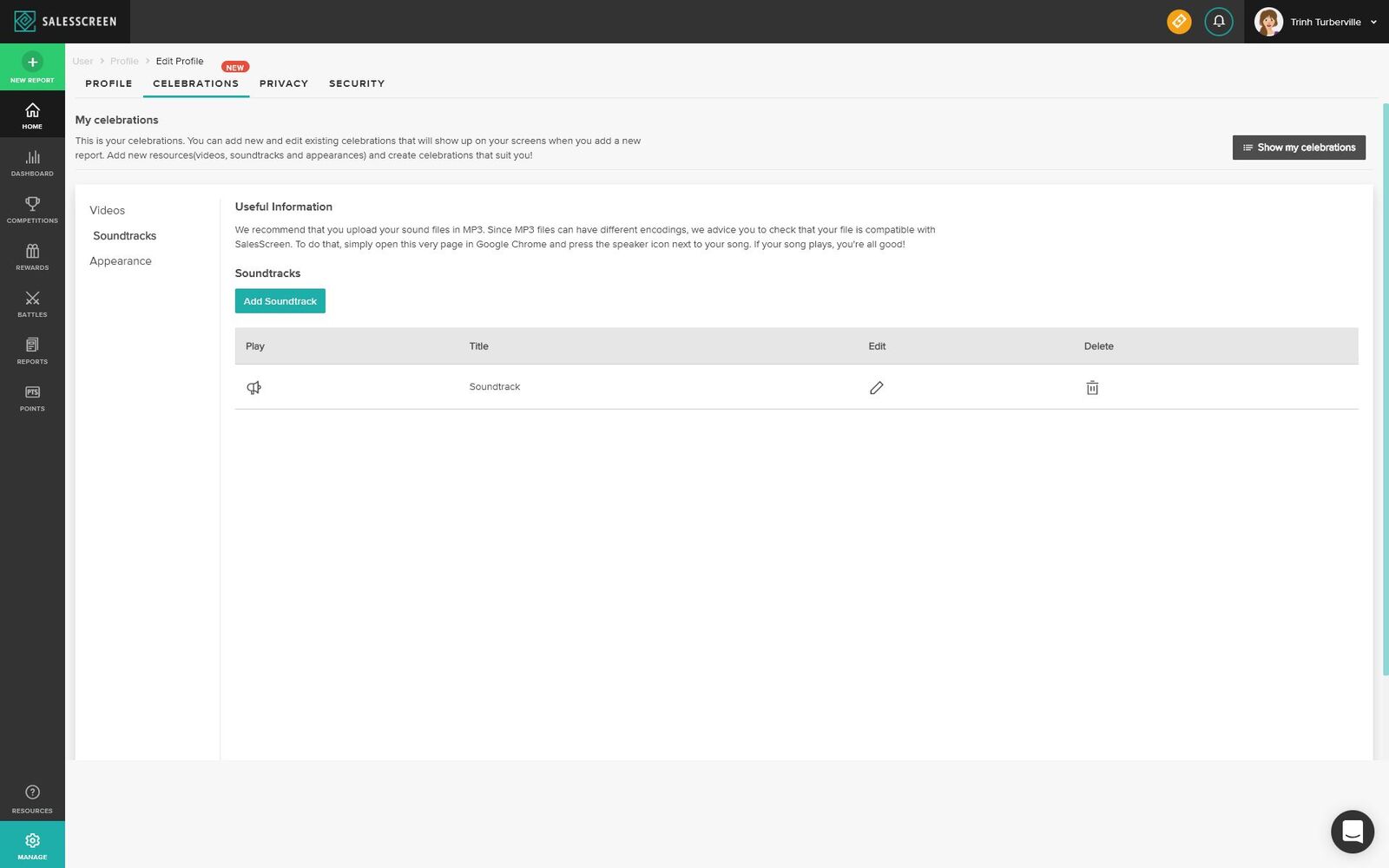
Celebrations is how you define what will show on your office's SalesScreen TV when you register a new report. To get to the Celebrations manage area please visit this link while logged into SalesScreen.
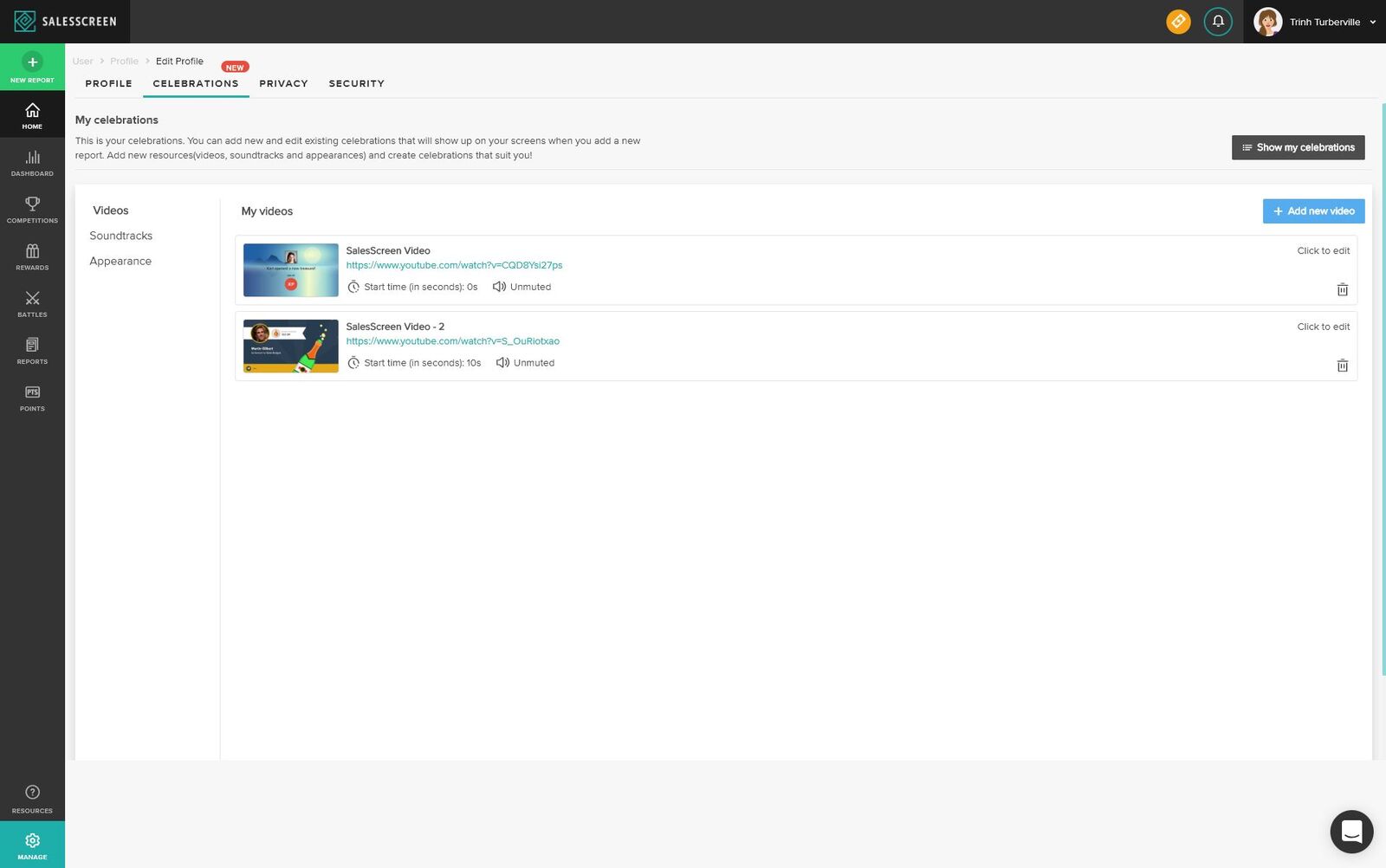
You will then be presented with an overview of your current Celebrations.
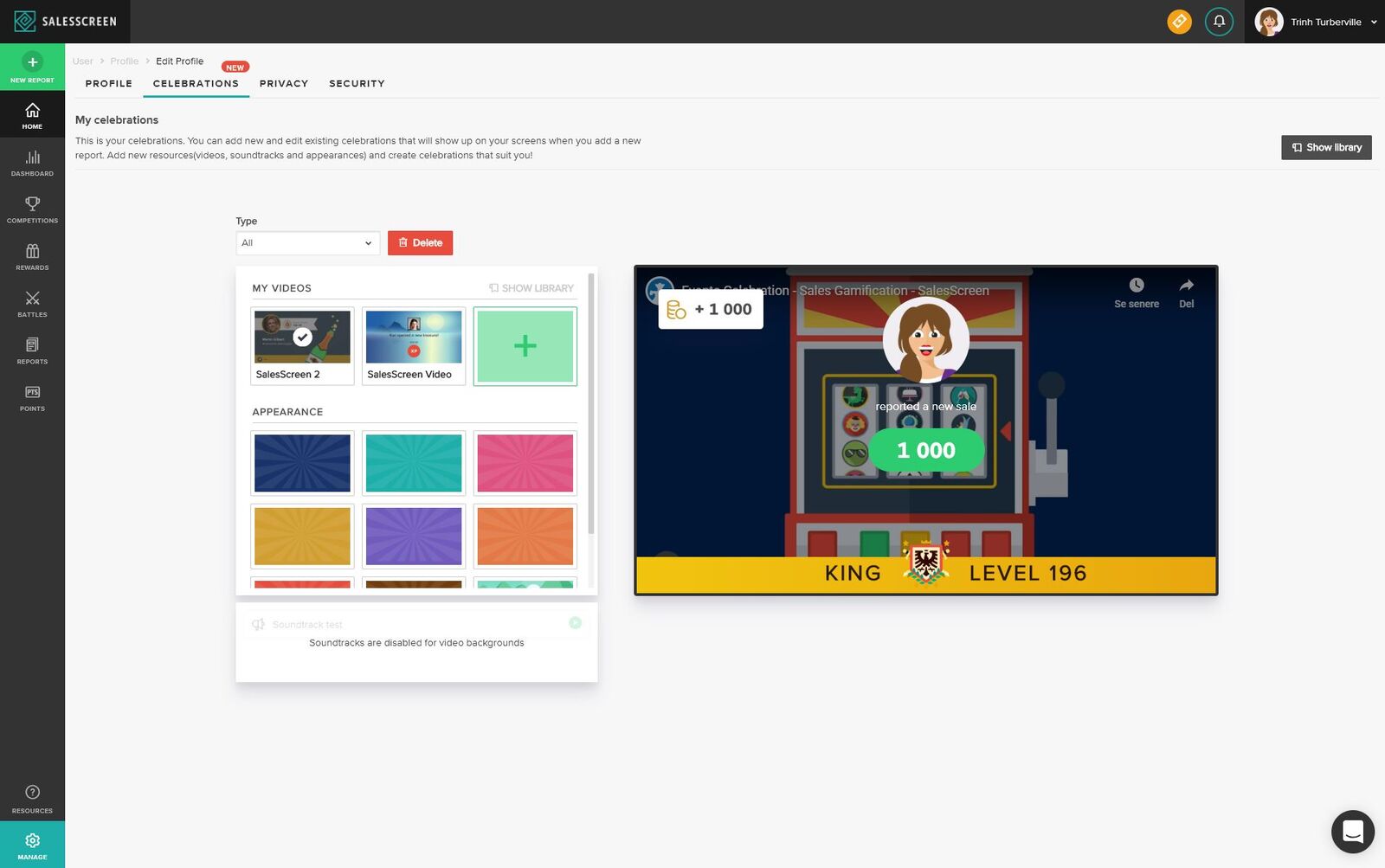
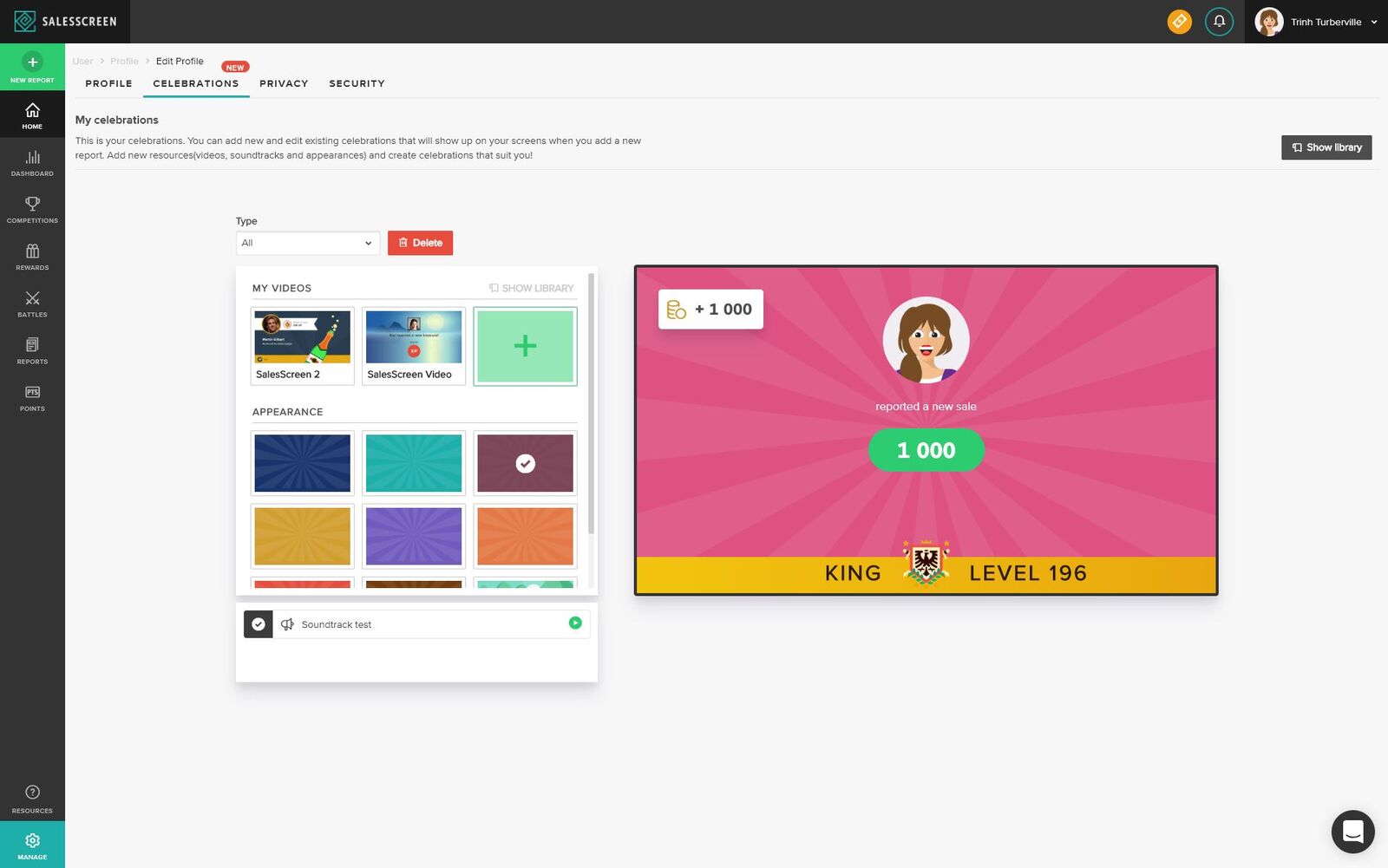
To update your Celebrations you select an item from the list and a preview of your selected Celebration will then be displayed on the right.
There are two types of Celebrations. You can either have a YouTube video Celebration or an Appearance + mp3 Celebration.
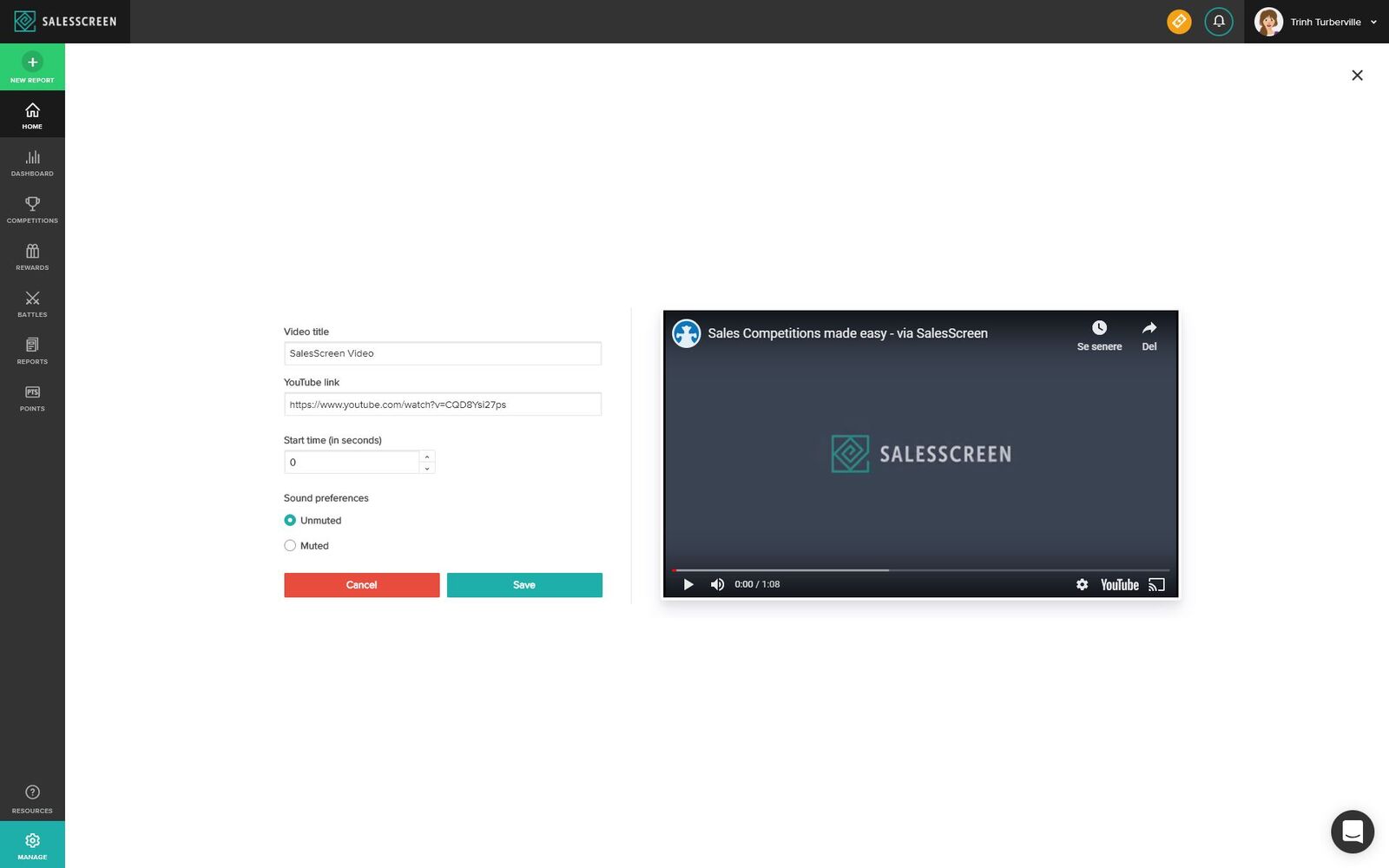
To add a new YouTube video to your collection you can press the big '+' under 'videos'. You will then be presented with a video create form where you enter the link to the YouTube video, a title, a start time and if the video should be muted or not. YouTube videos will play with sound for the full duration of the popup (we will in the future support sound duration on products).
Your newly created YouTube video will then be displayed in the video list as well as on the library page.
The library page is also where you can add new Soundtracks.